Signature On Docs & Photos
- 4.3
- Rating
- 5.00M
- Installs
- Free
- Price
 Analysis by App-foxy
Signing a document from a phone sounds simple until the request arrives while I am away from my computer. Then the usual routine becomes surprisingly awkward: find a file, work out where the signature belongs, create a usable handwritten mark, save the result, and send it back without accidentally sharing the wrong version. Signature On Docs & Photos is built around that recurring problem. It is a free tools app from Battery Stats Saver that focuses on creating a digital signature and placing it on documents or photos.
After using it, my view is that its value is less about replacing a full document-management system and more about shortening a small but annoying task. If I only need to sign a form, image, permission slip, or scanned page from my phone, having the work happen in one app is convenient. The experience is not perfect, and anyone handling formal business paperwork should still check whether a typed or drawn signature is accepted. But for everyday signing, it can remove several steps that normally push me back to a laptop.
Turning a repeated paperwork chore into a phone task
The app’s store summary describes a signature maker, signature creator, name signature scanner, and digital signature tool. In practical terms, I treat it as a compact workspace for making a signature and using it on visual files. That distinction matters. It is not the same thing as a complete electronic-signature service with a large workflow around identities, recipients, audit trails, and document routing. Its appeal is immediacy: I can work on the item in front of me rather than prepare an elaborate signing process.
You May Also Like

 Blood Strike: 2.5 Anniversary
Blood Strike’s Loadouts Turn Every Drop Into a Tactical Gamble
A close look at Blood Strike’s custom loadouts: how fast access to signature weapons reshapes its battle royale rhythm, rewards preparation, and narrows the gap between fights.

 Pandora - Music & Podcasts
Pandora’s Music Is Easy to Start, but Harder to Recover
Pandora’s strength is its low-effort path from a seed to a station. Its weak spot is how much confidence it asks you to place in connection, setup, and quiet recovery.

 8 Ball Pool
 Is Built on Rivalries, Rematches, and Routine
A close look at the rivalries, rematches, shared routines, and unanswered safety questions that turn a quick pool match into a persistent mobile community.

 Samsung Music
’s Quiet Strength Is Playing What You Already Own
Its reach comes less from spectacle than from dependable access to a personal library. That simplicity is both the app’s strongest retention engine and its ceiling.

 AccuWeather: Weather Radar
AccuWeather Review: A Quick, Clear Forecast for Everyday Decisions
For everyday plans, the best forecast is the one you can understand quickly. AccuWeather makes rain timing, radar, and local conditions easy to act on, with a few trade-offs.

 Hill Climb Racing
Why Hill Climb Racing Still Turns Crashes Into One More Run
A tiny car, a bumpy hill and one more upgrade: Hill Climb Racing keeps resurfacing because its simple chaos makes every near-miss feel personal.
More From Our News Desk



The strongest reason to try it is the situation most people recognize: a form arrives in a chat or email, the sender wants it returned quickly, and I am using only my phone. Opening the document in a general viewer may let me draw on it, but the result can be rough. A separate image editor offers more control but also more menus and more chances to save an incomplete copy. A dedicated signature app gives the task a clearer purpose, which is useful when speed matters more than advanced document administration.
I also like that the same basic idea applies to photos. A photographed paper form, a receipt image, a permission note, or another picture that needs a visible signature can be handled in the same general workflow. That makes the app more flexible than a tool designed only around a particular document format. The trade-off is that signing an image is primarily a visual action; it does not automatically give the file the legal or verification properties associated with a formal digital-signature platform.
There is already a sizeable audience using it. Signature On Docs & Photos has an average rating of 4.3 from around 37 thousand ratings and has passed 5 million installs. Those figures do not guarantee that it will suit every workflow, but they do suggest that the basic phone-signing use case is easy for many people to understand. I found the concept approachable because I did not need to learn a complicated system before reaching the useful part.
What I would prepare before signing
My first useful setup was not technical; it was organizational. I kept the original file untouched and worked from a copy or a clearly named version. That small habit prevents a common mistake with mobile editing: replacing the source and later wondering which file was actually sent. For a one-page form, I also checked the page orientation before starting, because a signature that looks comfortable on a portrait page may need different positioning on a landscape image.
I would also decide what kind of signature the recipient expects. A drawn mark made with a finger can be perfectly practical for an informal form, but a company, school, landlord, or public office may require a particular signing method. The app makes creating a visible signature easier; it cannot decide whether that signature meets another organization’s rules. I consider that an important boundary, especially when the document has financial, employment, medical, or legal consequences.
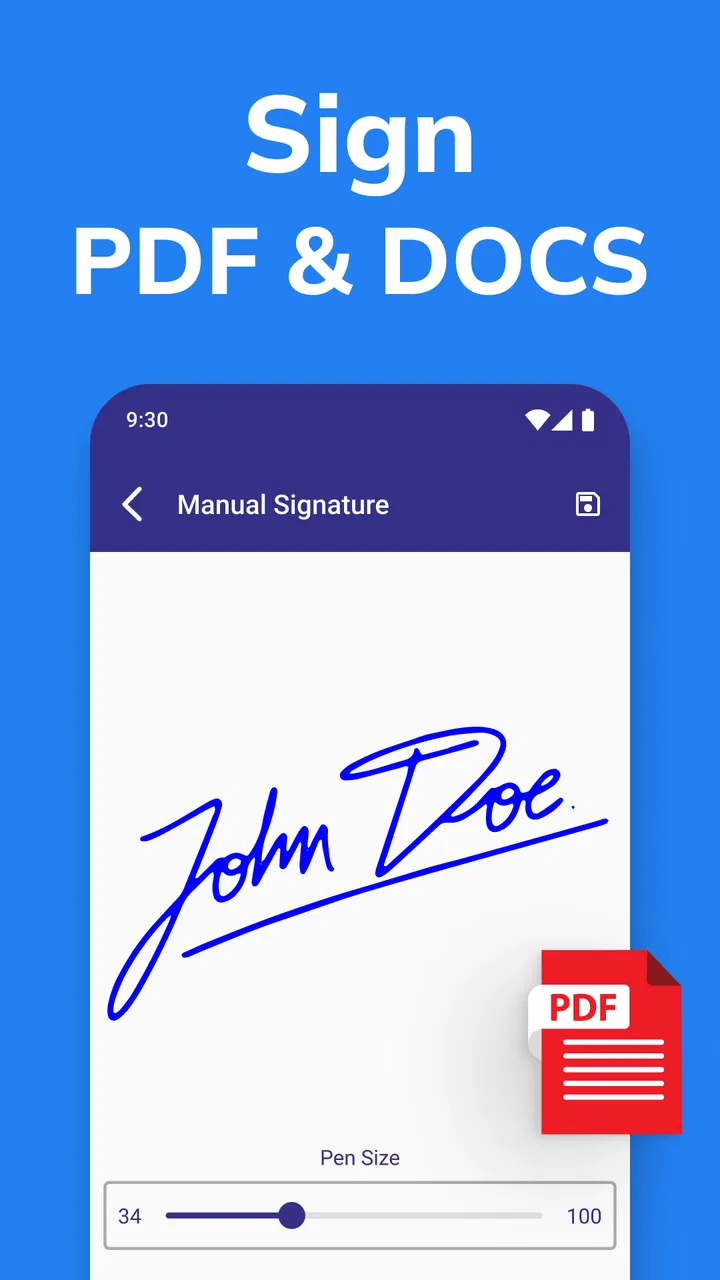
Creating a clean mark takes a little patience. On a phone screen, a rushed finger movement can make a signature look unlike the one I normally use. My better approach was to slow down, use the largest comfortable area available, and redo it if the line looked cramped. The time spent making a cleaner reusable signature is worthwhile because it reduces the need to redraw it every time a new page arrives.
A useful, less obvious workflow is to think of the signature as a visual asset rather than something to improvise on every document. I would create one version for ordinary paperwork and keep the style consistent. If the app’s controls allow the mark to be reused within the signing process, that can be faster than drawing from scratch. Even when I choose to redraw, having a familiar shape makes placement more predictable and helps avoid a signature that changes dramatically from one file to the next.
How it fits real everyday situations
Imagine receiving a rental-related form while commuting. I can open the file or photo, create or apply a signature, position it near the intended line, and prepare the signed version without waiting until I reach a computer. The biggest saving is not the drawing itself. It is avoiding the chain of forwarding the file to another device, opening desktop software, exporting it, and sending it back to the phone.
Another realistic use is a school permission form photographed by a family member. A photo-based workflow is useful there because the original may already exist as an image rather than a polished PDF. I would inspect the whole picture after signing, making sure the mark is on the correct line and that no important text has been covered. A signature placed too close to a border or over printed instructions can make an otherwise correct form look careless.
Freelancers may find it handy for small approvals, delivery confirmations, or simple client paperwork. The app can help when the requirement is simply to add a visible handwritten mark to a file and return it. I would not make it my only tool for a large batch of contracts, though. Repetitive business signing benefits from a service that tracks recipients, signing order, reminders, and completed records. A phone utility is quicker for an isolated job, while a dedicated business platform is safer for an organized signing pipeline.
It can also help with photos that need a personal mark, such as a signed image shared with someone directly. Here, the convenience comes from not having to move the image into a general graphics editor. Still, I would keep the signature subtle and place it where it proves ownership without obscuring the subject. A large mark may be easy to see but can reduce the usefulness of the image itself.
Where the app removes friction
The most noticeable improvement is the reduction in app switching. Normally, I might use one app to view a file, another to draw, a third to crop or export, and a messaging app to send the result. Signature On Docs & Photos brings the central action into a more focused tool. That does not eliminate every step, but it makes the task feel like a short errand instead of a miniature editing project.
The app is also more approachable than a full PDF editor when I only need a signature. Full editors often expose many controls that are valuable for professional document work but distracting for a quick form. Here, the purpose is narrower, so I can concentrate on the signature and its placement. This is particularly useful for people who do not regularly edit documents and do not want to learn a broad productivity suite for one recurring action.
One practical tip is to zoom in before placing the mark, then zoom back out to inspect the complete page. Close-up placement helps me align the signature with a line, while the full-page check catches mistakes such as covering a date field, drifting into nearby text, or leaving the mark partly outside the image. That two-stage check is more reliable than judging the position at only one zoom level.
I would also review the final image before sharing it, rather than trusting the first preview. Look for the signature, the complete page, readable text, and the correct orientation. If the original was a photograph, check that the edges are still visible and that the signed version has not been cropped in a way that removes context. These checks take seconds and matter more than decorative editing options.
Another useful trade-off concerns speed versus neatness. A quick finger-drawn signature may be enough for a casual acknowledgment, but a more careful mark looks better on a form that someone else must archive. I prefer spending a little longer on the signature creation step and then reusing the cleaner result. The app helps with the mechanics, but the quality of the final document still depends on how carefully I work.
What I would not expect from it
The name and store positioning can make the app sound broader than the core task. I would not assume that adding a visible signature to a file automatically creates a legally certified electronic signature. Those are different things. Formal signing may involve identity checks, tamper evidence, timestamps, certificates, or a prescribed provider. When those requirements apply, I would choose a service designed for that exact process rather than rely on a simple visual signature tool.
I would also skip it if my main need is advanced document editing. Someone who regularly fills complex forms, rearranges pages, adds comments, redacts information, or manages many file types may be better served by a dedicated PDF editor. This app makes sense when signing is the central action. It is less compelling when the signature is only one small part of a larger document-production workflow.
Privacy deserves a deliberate approach as well. Signed documents can contain addresses, identification details, contracts, or financial information. Before using any mobile editing tool for sensitive material, I would read its current privacy and storage disclosures and avoid casually sharing the resulting file through public channels. The app’s Everyone content rating describes its general audience, not the sensitivity of the documents a user may choose to process.
The free price makes trying it easy, but the app also contains in-app purchases ranging from $0.99 to $99.99 per item. I would begin with a simple signing task and see whether the free experience covers my needs before paying for anything. The broad price range means I would pay close attention to the purchase screen and understand exactly what an optional item provides. For occasional personal signing, a recurring or high-cost option would need a clear benefit to justify itself.
Compatibility, upkeep, and everyday practicality
The app is available for devices running Android 7.1 or later, which covers a wide range of phones but still makes the operating-system requirement worth checking before installation. Its current version is 5.0.0, and it was released on May 30, 2022. I would keep the app updated through the normal store process, especially when working with documents that need dependable exporting or sharing.
Battery Stats Saver is listed as the developer. That name is slightly unexpected for a signature-focused tool, so I would be especially careful to install the intended app and review its store page before accepting any purchase. This is not a reason to dismiss it, but it is a good reminder not to identify software by a vague search phrase alone when several signing tools may appear together.
For an older phone, I would test the workflow with a harmless image first. A signature app can feel simple while still depending on the device’s ability to open, edit, and save the source file smoothly. Testing with a non-sensitive sample lets me learn where the controls are and confirms that the exported result looks right before I use it for important paperwork.
The app’s age rating is Everyone, which fits its general-purpose presentation. In my view, the more important suitability question is not age but responsibility: a younger or inexperienced user may be able to add a signature easily, yet an adult should decide whether the document is appropriate to sign and send. Convenience should never replace reading the form or confirming the recipient.
My verdict after using it for the right job
Signature On Docs & Photos is most useful when the problem is a single signature that needs to be added quickly from a phone. It saves time by keeping the task focused, works with the everyday reality of photographed paperwork, and avoids the unnecessary complexity of a full signing platform. I would recommend it to students, families, freelancers, and anyone who occasionally receives a form away from a computer.
I would not recommend treating it as a complete replacement for professional electronic-signature services, advanced PDF editors, or a carefully managed contract archive. Its limitations become clear when documents require formal verification, batch processing, detailed records, or extensive editing. In those cases, the usual alternative is better even if it takes longer to learn.
For me, the deciding question is simple: do I need a visible signature on a document or photo, or do I need a regulated signing workflow? If it is the first, this free tools app is a practical shortcut worth trying. If it is the second, I would look elsewhere before signing anything important. Used within that boundary, it does what I want from a mobile utility: it turns an irritating interruption into a manageable few-minute task.
FAQs for Signature On Docs & Photos
01What is Signature On Docs & Photos used for?
Signature On Docs & Photos is designed for adding handwritten or digital signatures to documents and images directly from a mobile device. It can be useful for signing forms, agreements, receipts, applications, and photos without printing them first. Before downloading, users should check whether the app supports the file formats and sharing methods they normally use.
02Can I create and save my own signature in the app?
The app generally allows users to create a signature by drawing it on the screen, then place that signature on a document or photo. Depending on the version and device, you may also be able to save a signature for repeated use. It is worth reviewing the available settings, because storage options, signature libraries, and editing tools can vary between releases.
03Which documents or image formats are supported?
Signature On Docs & Photos is intended to work with common documents and image files, but the exact format support may depend on the operating system and app version. PDF files and standard photo formats are typically the main focus. If you need to sign a particular office document, verify that it can be imported or converted before relying on the app for important paperwork.
04Is a signature added with this app legally valid?
A signature placed through a mobile application may be accepted for everyday documents, but legal validity depends on local laws, the type of agreement, and the requirements of the organization receiving it. This app should not automatically be treated as a certified electronic-signature service. For contracts, financial forms, or official submissions, confirm whether a qualified digital signature or additional identity verification is required.
05Is Signature On Docs & Photos free to use?
The app may offer basic signing features at no cost, while advanced tools, unlimited exports, advertising removal, or additional editing options could require in-app purchases or a subscription. Check the current store listing and pricing before downloading. Also review the privacy policy and permissions, particularly if you plan to import sensitive documents or personal photos for signing.
Pros
- Lets you sign documents and photos directly from your mobile device.
- Useful for completing forms without printing or scanning paperwork.
- Supports adding a handwritten signature with touch-screen controls.
- Can save time when handling routine approvals or personal documents.
- Convenient for users who need signatures while traveling or away from a computer.
Cons
- Signature quality may depend on your screen size and touch precision.
- Some export or sharing options may require in-app purchases.
- Sensitive documents may raise privacy concerns when processed on a phone.
- Large files or image-heavy documents can take longer to load and save.
- Advanced business signing features may be limited compared with dedicated e-signature tools.

Signature On Docs & Photos
Gallery